

Account alerts and notifications are a simple and effective way to stay informed about your finances and monitor your Alltru account activity in real time.

With digital banking, you can choose from a wide variety of alerts including automatic transfers, direct deposits, balance alerts, insufficient funds, check clearing and more. It’s also great way to get immediate information on any suspicious activity on your accounts. On mobile devices, you can select from email notifications or push notifications.
Online Banking Instructions:
Step 1: Log into your online banking account.
Step 2: Once in the dashboard, hover over the Tools & Settings menu at the top and then select Alerts.
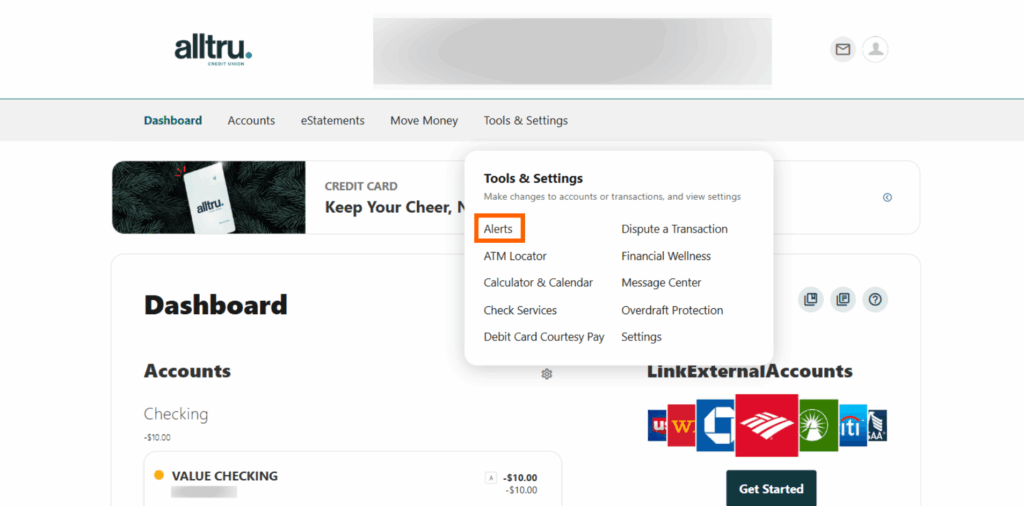
Step 3: From here, you’ll be taken to the General Alerts widget where you can manage all of your alerts for your selected account. Select the Accounts tab from the menu on the left and choose your desired account from the dropdown.
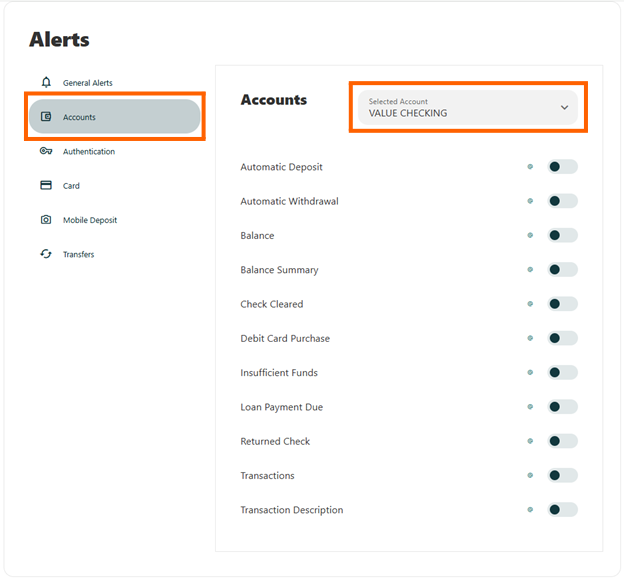
Step 4: Turn your desired notifications on by moving the on/off slider button. You can then select to receive email and/or push notifications. Then, save your changes. You’re all set!
Mobile Banking Instructions:
Step 1: Log into your account on the Alltru CU App.
Step 2: Select More from the menu at the bottom of the screen.

Step 3: Go to the Tools & Settings dropdown and then select Alerts.
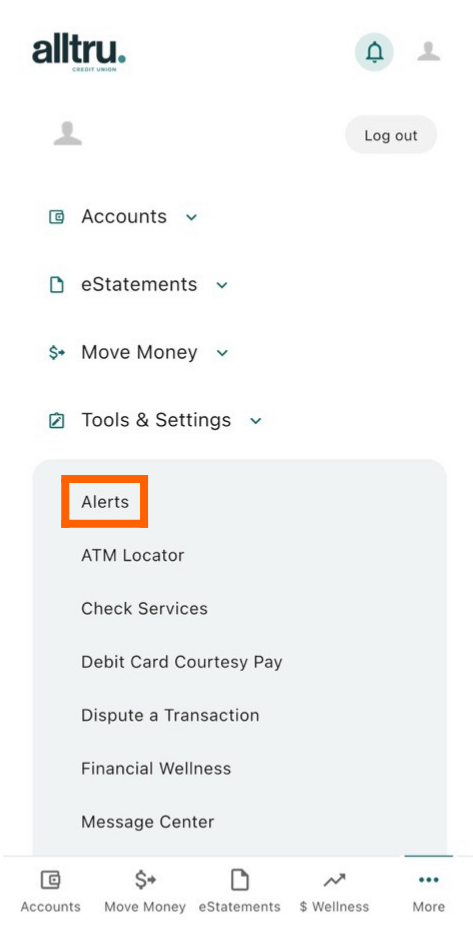
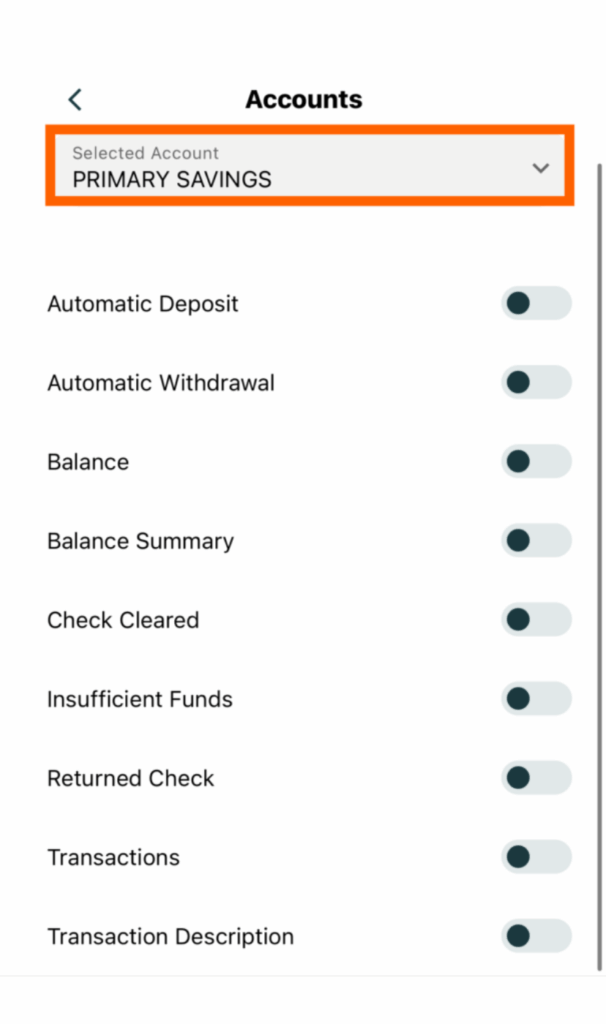
Step 4: Tap Accounts to manage all of your account alerts.
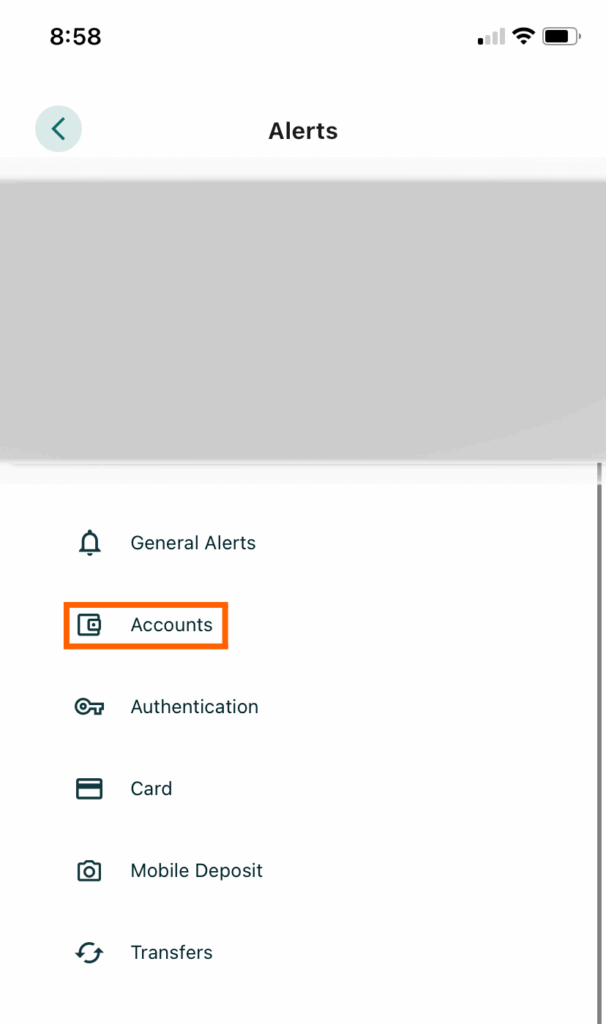
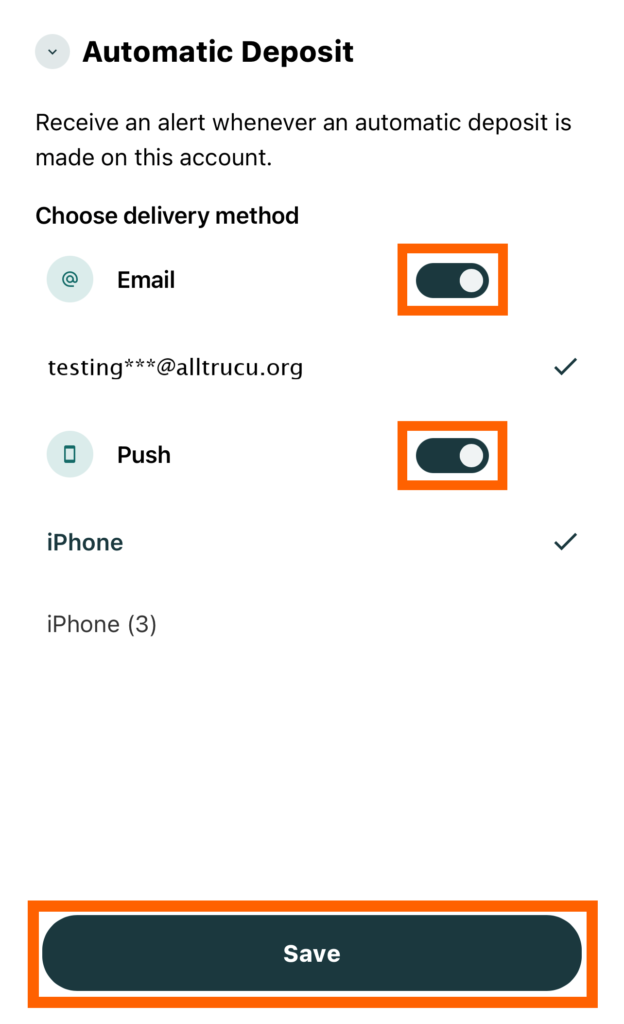
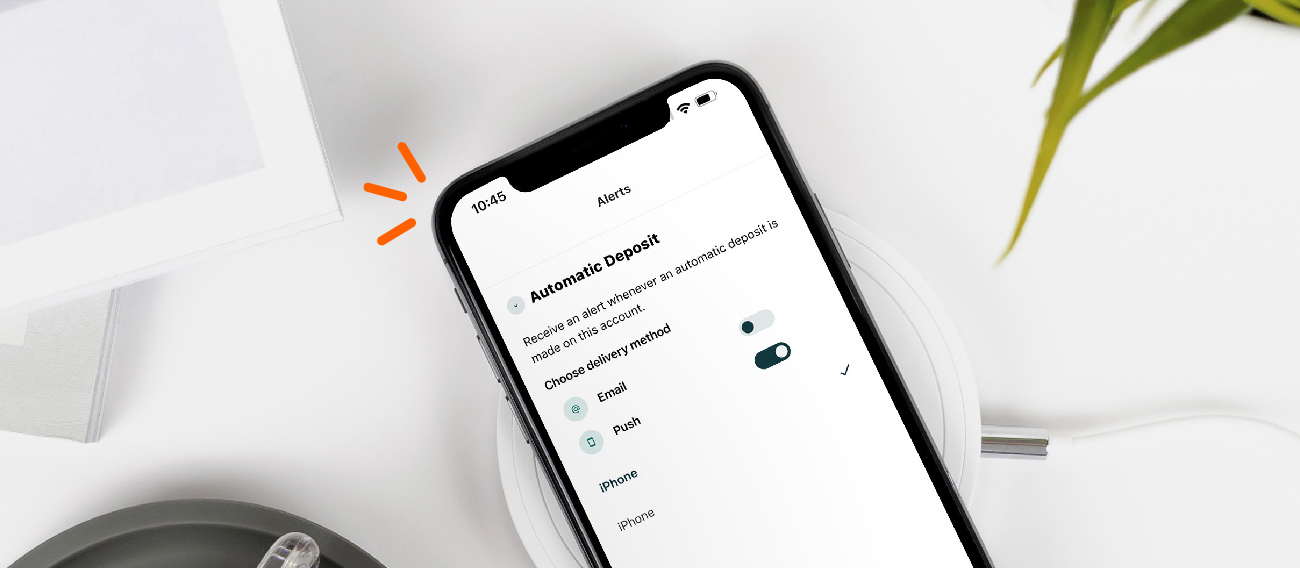
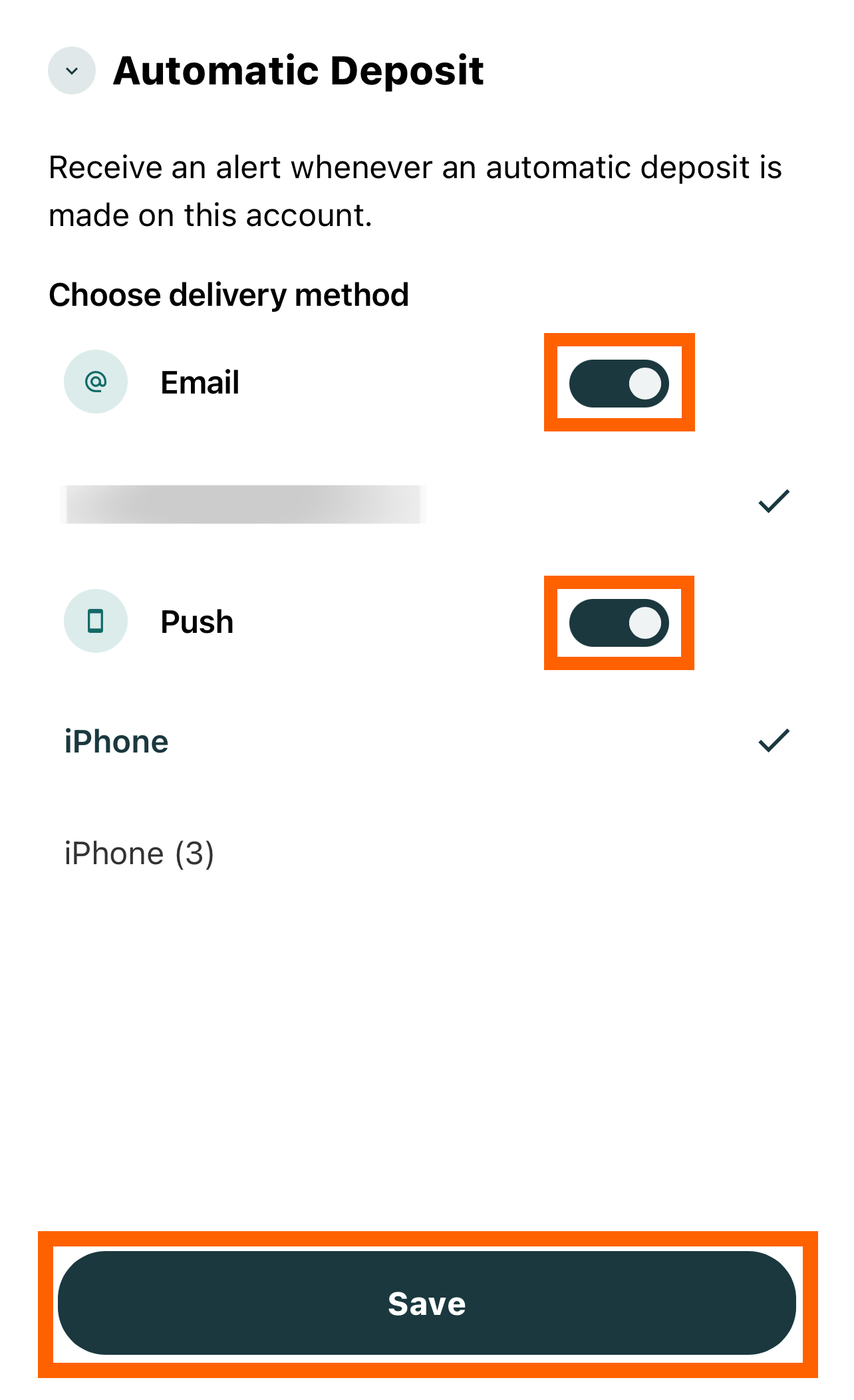
Step 5: After selecting your desired account, turn on a notification by choosing your desired alert then moving the on/off slider button. Then, select to receive email and/or push notifications. Lastly, save your changes.