


In Bill Pay, you can organize the companies or people you pay into groups to make your bills easier to manage.

What would you like to do?
Create a New Group
Step 1: Open Bill Pay
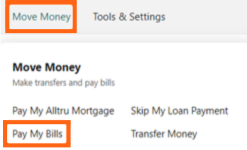
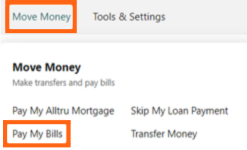
Log in to Online Banking and select Move Money, then Pay My Bills.
Step 2: Create a group
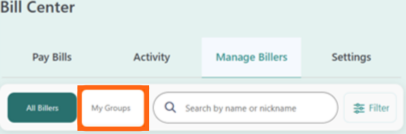
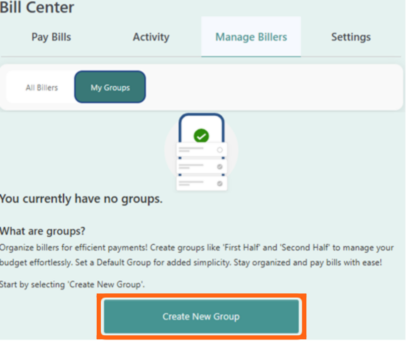
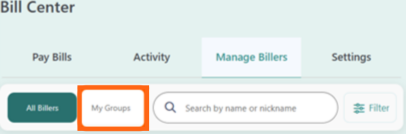
Select Manage Billers and then My Groups. Select the teal Create New Group button.
Step 3: Add billers to your group
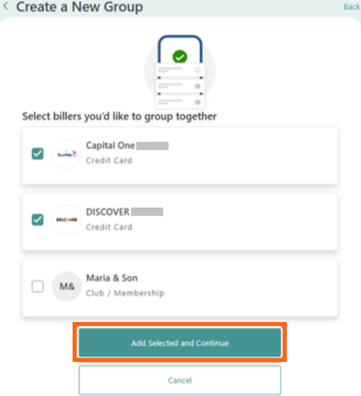
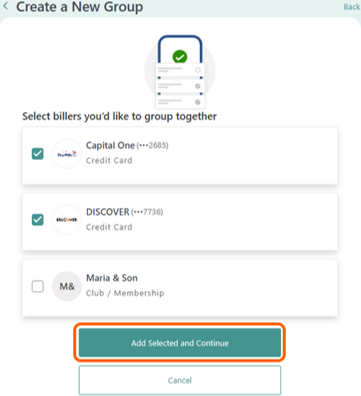
Select the billers you want to include in the group, then select the teal Add Selected and Continue button.
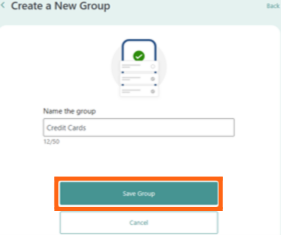
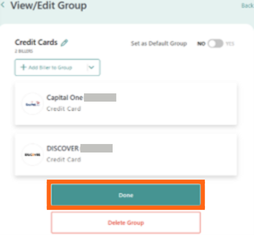
Enter a name in the Name the group field, then select the teal Save Group button. Select Done to finish.
Edit a Group
Step 1: Open Bill Pay
Log in to Online Banking and select Move Money, then Pay My Bills.
Step 2: Select a Group
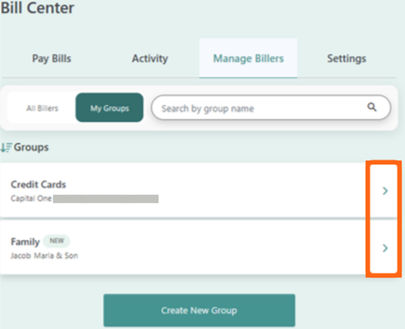
Select Manage Billers, then My Groups. Find the group you want to edit and select the arrow next to it.
Step 3: Add a biller to the group
To add another biller to the group, select + Add Biller to Group. Select the biller you want to add, then select the teal Add Selected and Continue button.

Delete a group
Step 1: Open Bill Pay
Log in to Online Banking and select Move Money, then Pay My Bills.
Step 2: Select a Group
Select Manage Billers, then My Groups. Find the group you want to edit and select the arrow next to it.
Step 3: Delete a group
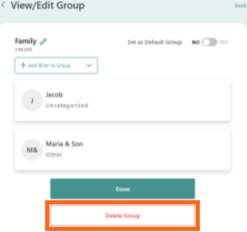
To delete a group, select Delete Group. When the confirmation message appears, select Delete Group again.
Deleting a group does not delete the billers in the group. You can still manage those billers and make payments to them.