
Send money securely to friends, family and others using Digital Banking. You can send money using the recipient’s email address or mobile phone number.

What would you like to do?
- Send money to someone
- Add or manage a recipient
- Receive money by email or text
- View or cancel a payment
- See when money will arrive
Using the Alltru mobile app? Pay Someone is available in both Online Banking and the Alltru mobile app. Some navigation may look slightly different depending on which one you use.
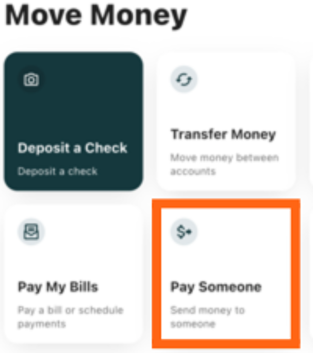
Send Money to Someone
Step 1: Open Bill Pay
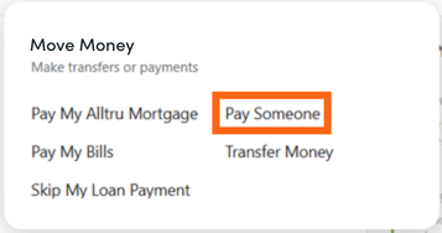
Log in to digital banking and select Move Money, then Pay Someone.
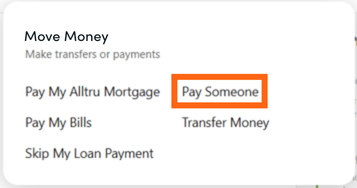
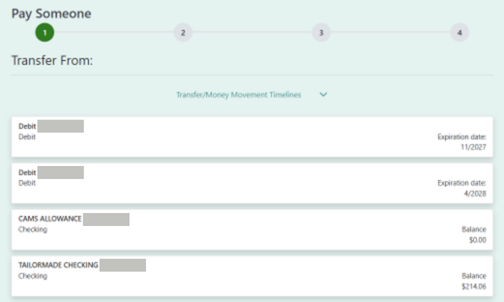
Step 2: Choose how you want to send the money.
Select the checking account or debit card you want to use.
If you use a debit card, you’ll be asked to enter the card’s security code (CVC).
Select Continue.
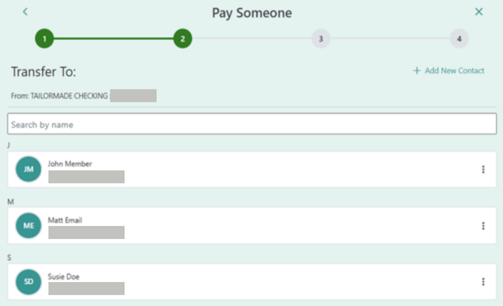
Step 3: Choose who you want to pay
Select the recipient from your list.
Don’t see the person you want to pay? Select + Add New Contact and enter their name and email address or mobile phone number.
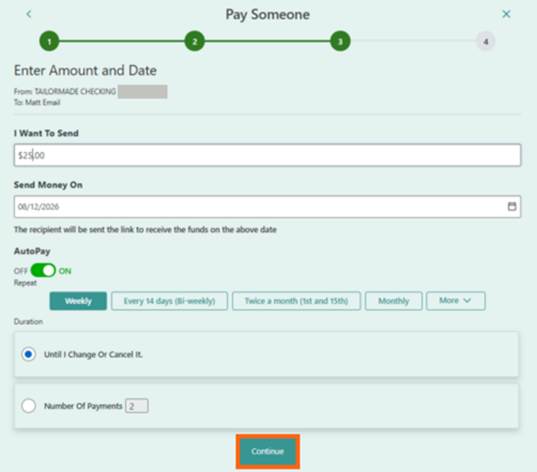
Step 4: Enter the payment details
Enter:
- The amount you want to send
- The date you want to send it
If you want the payment to repeat automatically, you can also turn on AutoPay and choose how often the payment should be sent.
Select Continue.
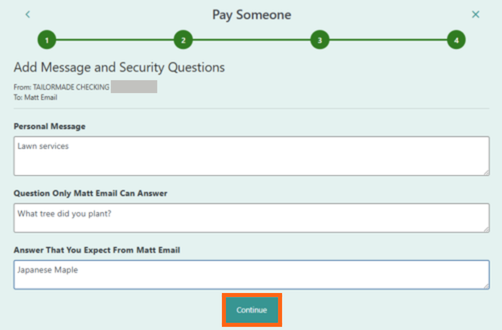
Step 5: Add a message and security question
Add a personal message and create a security question that your recipient can answer.
Enter the answer your recipient will need to provide, then select Continue.
Important: Make sure your recipient knows the answer to the security question. They’ll need it to accept the payment.
Step 6: Review and send
Review the payment details to make sure everything is correct. Complete the required authorizations, then select Submit.
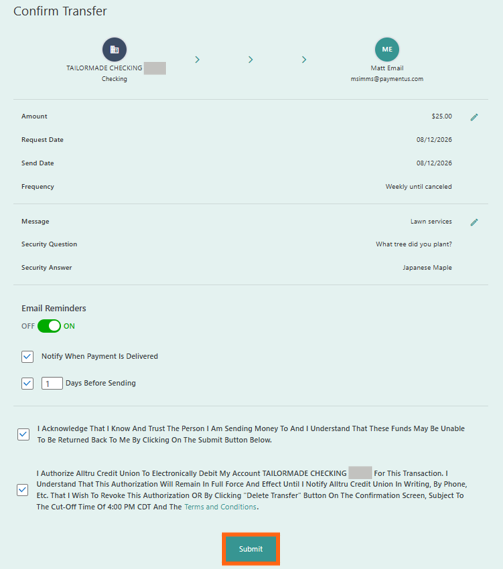
You’ll see a confirmation when your payment has been successfully submitted.
Add or Manage a Recipient
You can add, update or remove recipients at any time.
Add a recipient
- Select Move Money > Pay Someone.
- Select Recipients.
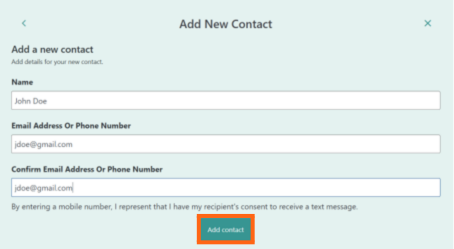
- Select Add New Contact.
- Enter the recipient’s name and email address or mobile phone number.
- Select Add Contact.


Edit or delete a recipient
From Manage Recipients, select the three-dot menu next to the person you want to manage.
Select Edit to update their information or Delete to remove them.
Note: A recipient with a scheduled payment cannot be deleted. You’ll need to cancel the scheduled payment first.
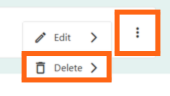
Managing Recipients in the Mobile App
In the Alltru mobile app:
- Select Move Money at the bottom of the screen.
- Select Pay Someone.
- Select the three-dot menu.
- Select Manage Recipients.
From there, you can add, edit or delete recipients using the same steps above.

Receive Money
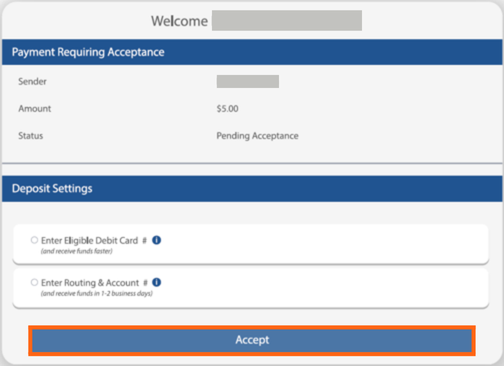
When someone sends you money using Pay Someone, you’ll receive an email or text notification with instructions for accepting the payment.
- If you receive an email: Select Deposit Now.
- If you receive a text: Select the link in the text message.
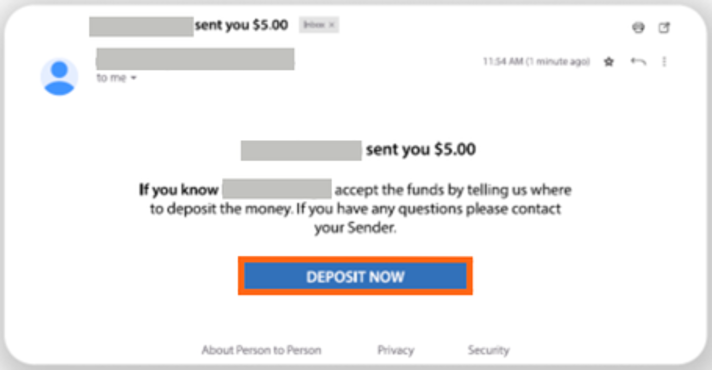
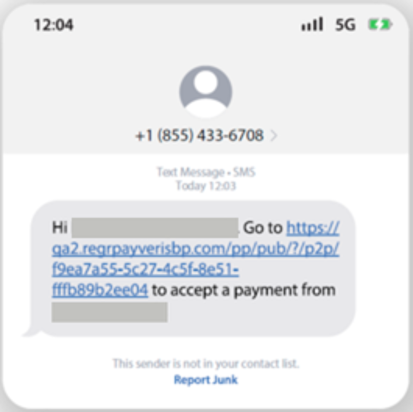
Accept your payment
Next:
- Enter the email address or mobile phone number where you received the notification.
- Enter the answer to the security question provided by the sender.
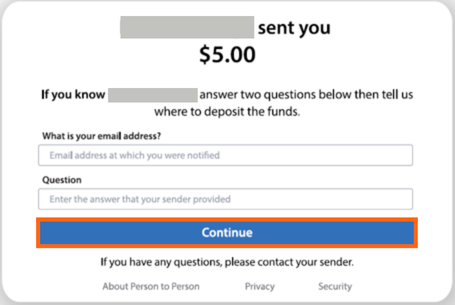
- Choose where you want the money deposited. You can use an eligible debit card or enter a routing and account number.
- Select Accept.
View or Cancel a Scheduled Payment
View a scheduled payment
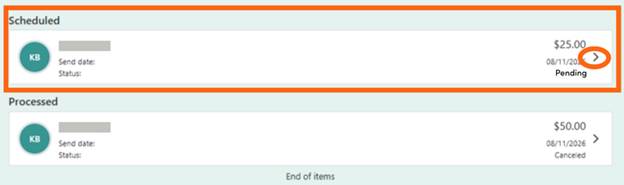
- Go to Move Money > Pay Someone.
- Find the payment under Scheduled.
- Select the arrow next to the payment to view its details.
Cancel a scheduled payment
Open the scheduled payment and select Delete Transfer.
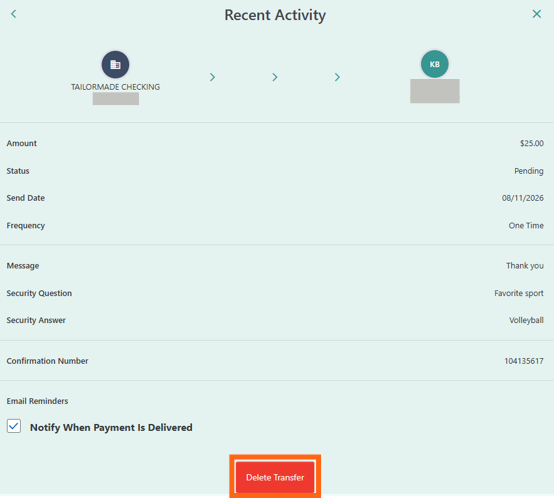
Select Yes, Delete to confirm.
You’ll see a confirmation when the payment has been canceled.
When Will the Money Arrive?
How quickly your recipient receives the money depends on how you send it and how they choose to receive it.
| You send from | Recipient deposits to | Money is delivered |
| Debit card | Debit card | Immediately |
| Debit card | Bank account | 2-3 business days |
| Bank account | Debit card | End of day |
| Bank account | Bank account | 2-3 business days |