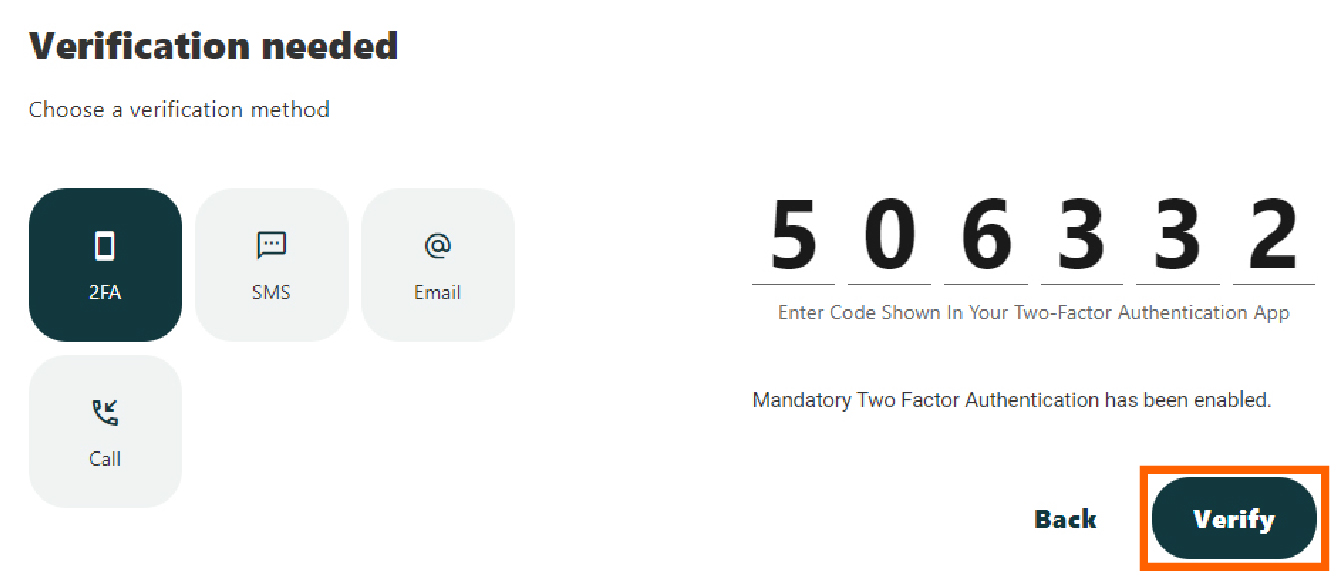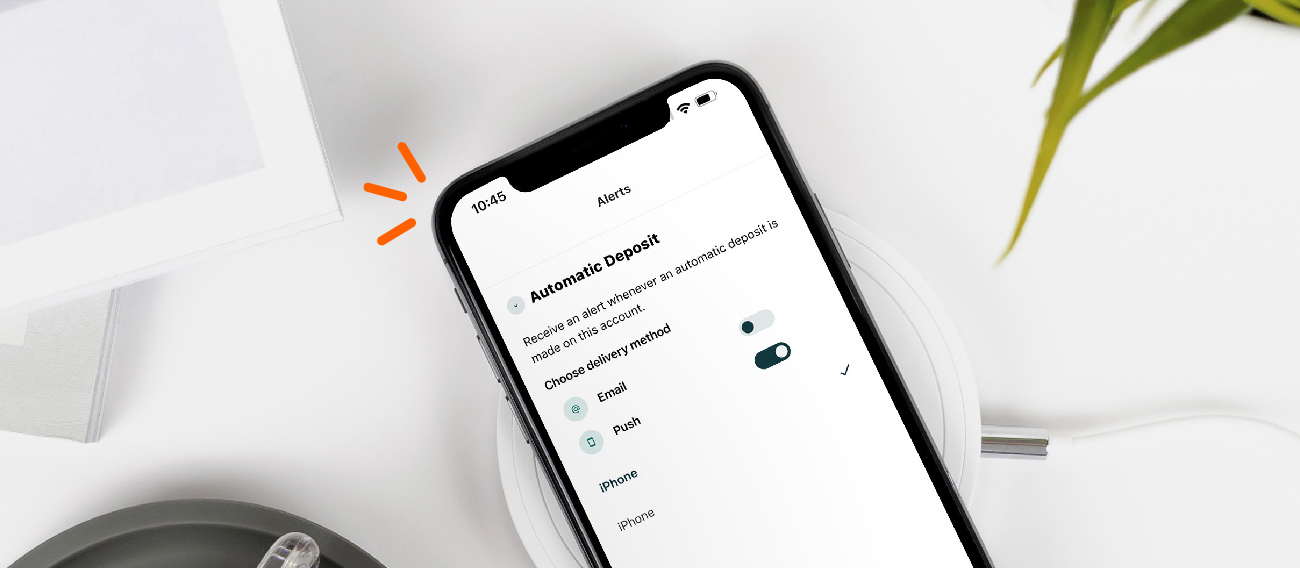




The digital banking platform offers Two-Factor Authentication, which is a security feature that requires more than one method of authentication to verify your identity. Setting up Two-Factor Authentication keeps your account more secure in case scammers receive your account login information. Turning on Two-Factor Authentication overrides other security settings such as “Remember this Device.” Along with a password or biometric identification, a One-Time Passcode is also required.
You should never give out your One-Time Password or Time-Based One-Time Password to anyone. Alltru will never call you and ask for your One-Time Password or Time-Based One-Time Password. If you receive a call from someone claiming to be Alltru telling you that you have online banking fraud and asking for your One-Time Password or Time-Based One-Time Password, that is a scam. Please hang up immediately and contact Alltru directly via one of our contact methods on https://alltrucu.org/contact/.
Online Banking Instructions
Step 1: Log into your online banking account.
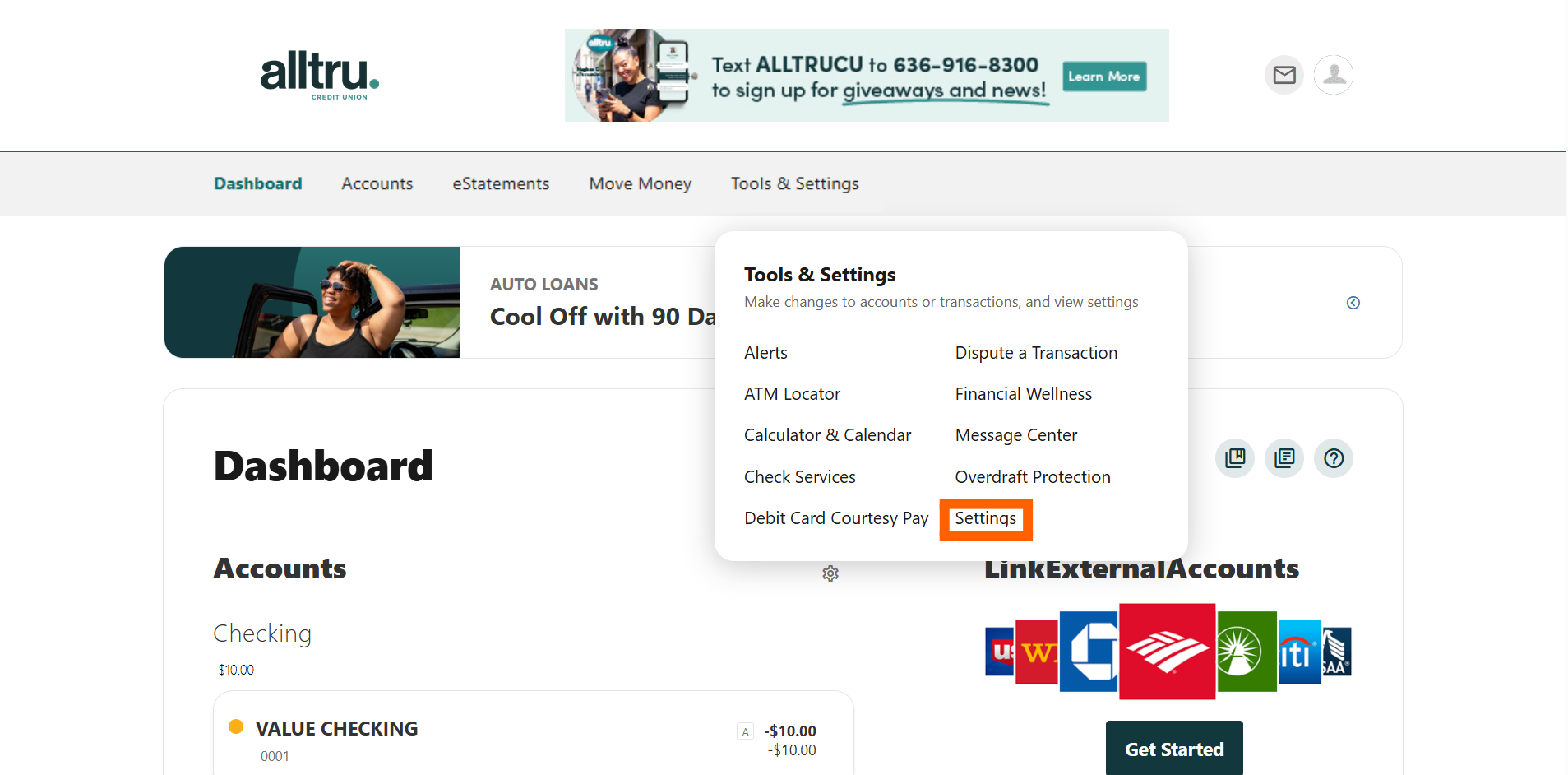
Step 2: Once in the dashboard, hover over the Tools & Settings menu at the top and then select Settings.
Step 3: Click the Security tab and locate the Two-Factor Authentication section.
Step 4: Toggle the button to On.
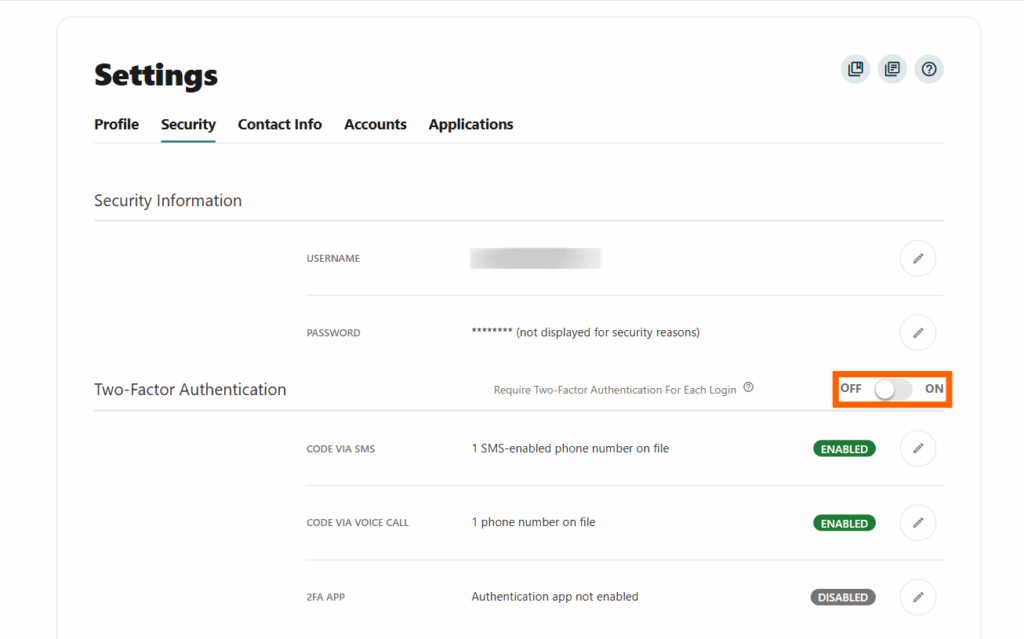
The Two-Factor Authentication options to receive the One-Time Password are SMS, Voice Call, and Time-Based One-Time Password through a third-party app.
One-Time Password: SMS and Voice Call
The Two-Factor Authentication delivery options are dependent on the phone number(s) listed on your Settings under the Contact Info tab. You can update your contact information in the Contact Info tab, but it can take up to 15 minutes for the change to be effective.
SMS messages with your One-Time Password come from 67669. Voice Calls with your One-Time Password come from 580-448-9162.
One-Time Password: Time-Based One-Time Password through a third-party app
Instead of receiving an SMS message or Voice Call, you can enroll in third-party Two-Factor Authentication apps like Google Authenticator, Microsoft Authenticator, Authy or Duo. The Time-based One-Time Password will be displayed in the third-party Two-Factor Authentication app instead of being delivered through SMS or Voice Call to your device.
Step 1: Open the Security tab in Settings and select the green Enroll button at the bottom of the screen.
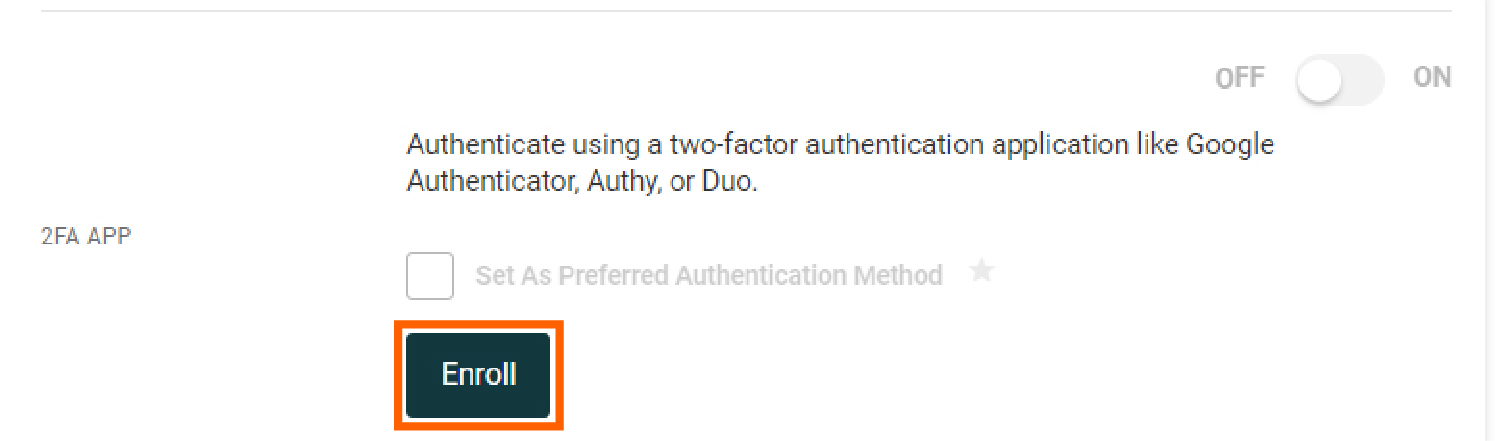
Step 2: Download your desired third-party Two-Factor Authentication app.
Step 3: Open the third-party Two-Factor Authentication app and scan the QR code with your mobile device.
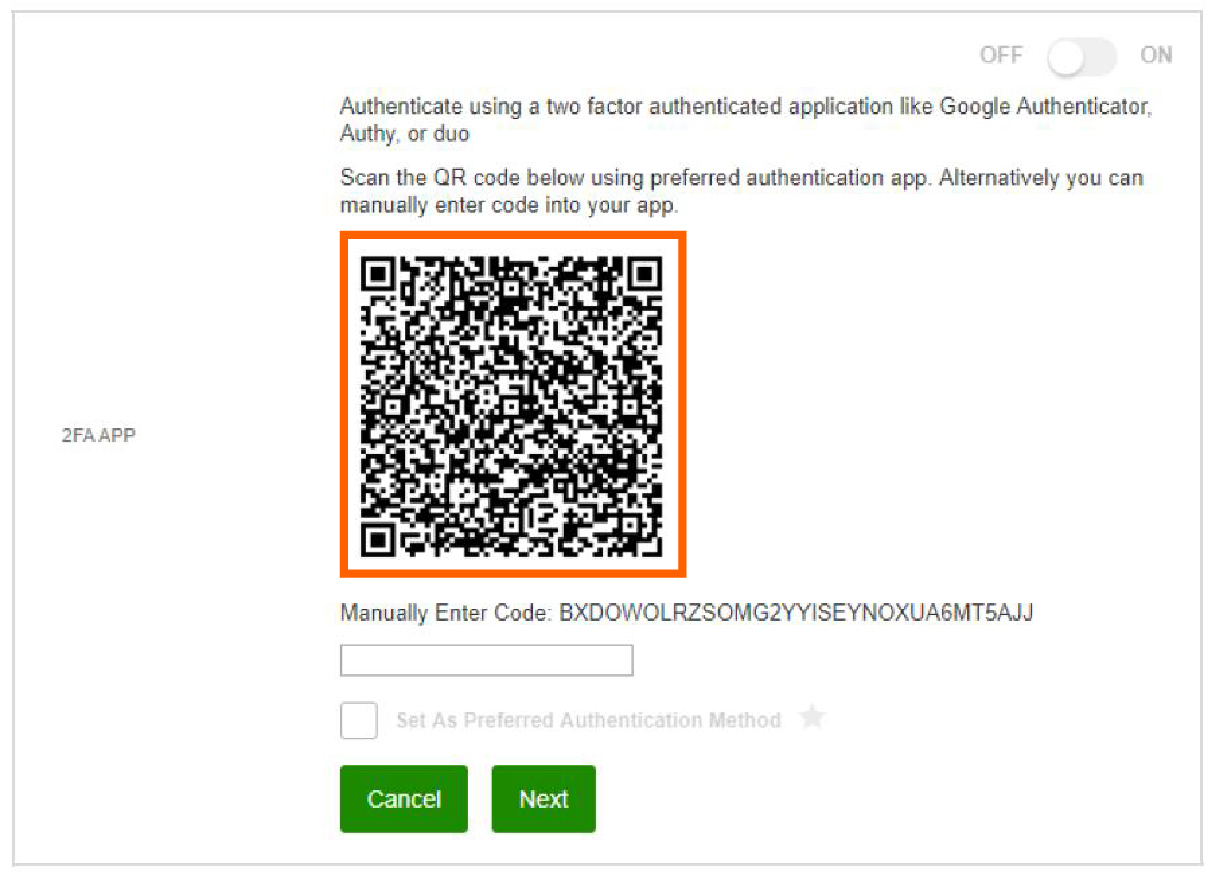
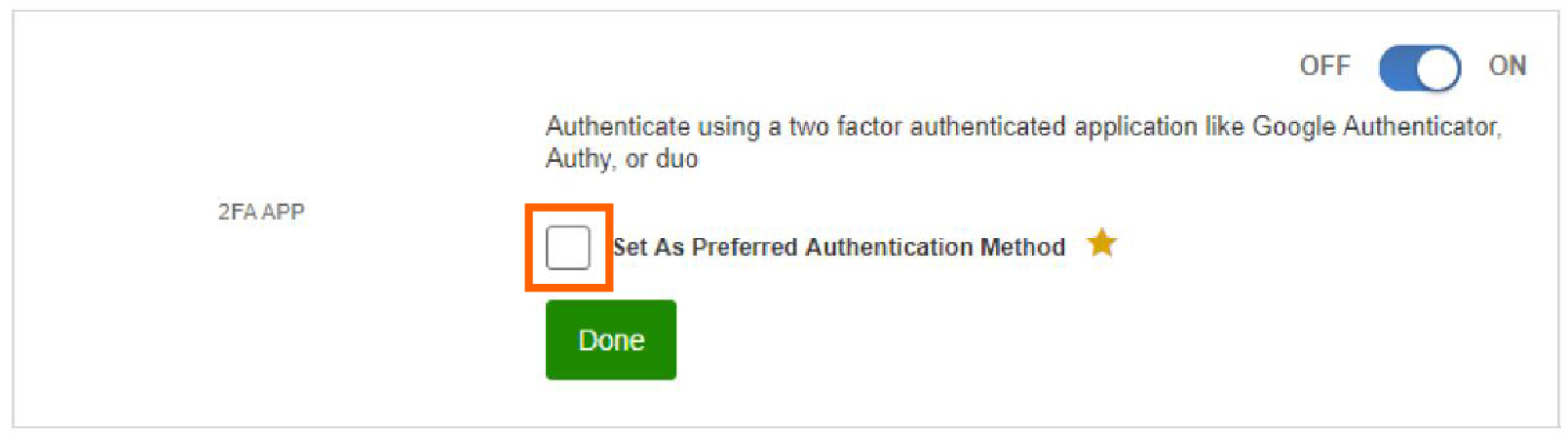
Step 4: Set Two-Factor Authentication as your preferred communication method by selecting the box.
Logging in to Mobile Banking with Two-Factor Authentication Instructions
Step 1: Log into your account on the Alltru CU App.
Step 2: Open your third-party app and enter the code that appears on the screen in the Online Banking Enter Code field.