


Need to temporarily freeze your debit card? It takes seconds to freeze or unfreeze.

Need to put your debit card on pause? Freezing your card is quick, secure, and available 24/7 right from your Alltru mobile app or online banking. Whether you left your card at a restaurant, want to stop unauthorized transactions, or just need extra peace of mind, a freeze keeps your money safe until you’re ready to use your card again.
When your card is frozen, all new purchases, ATM withdrawals, and online transactions are blocked. You can unfreeze it instantly whenever you’re ready.
Note: If your card has been lost or stolen and needs to be replaced, a $10 card replacement fee applies. Learn how to order a replacement card here.
Online Banking Instructions:
Step 1: Log into your online banking account.
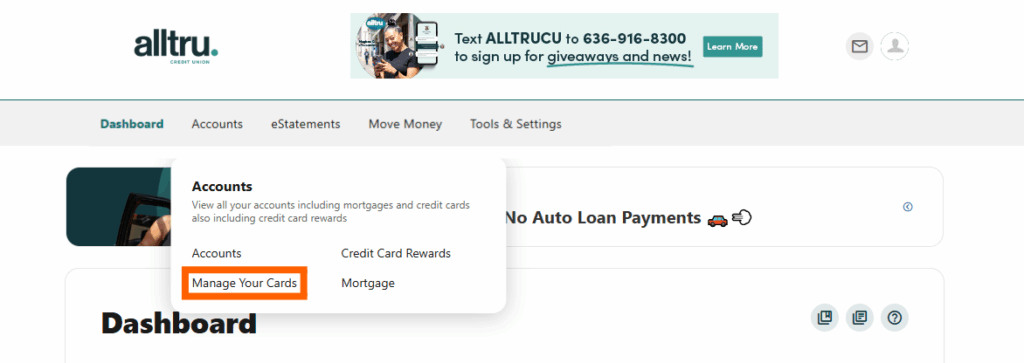
Step 2: Once in the dashboard, hover over the Accounts menu at the top and select Manage Your Cards.
Step 3 (optional): If you haven’t registered your card, it will ask first time users to do so. Register your card by entering in your card information and following the on-screen instructions.
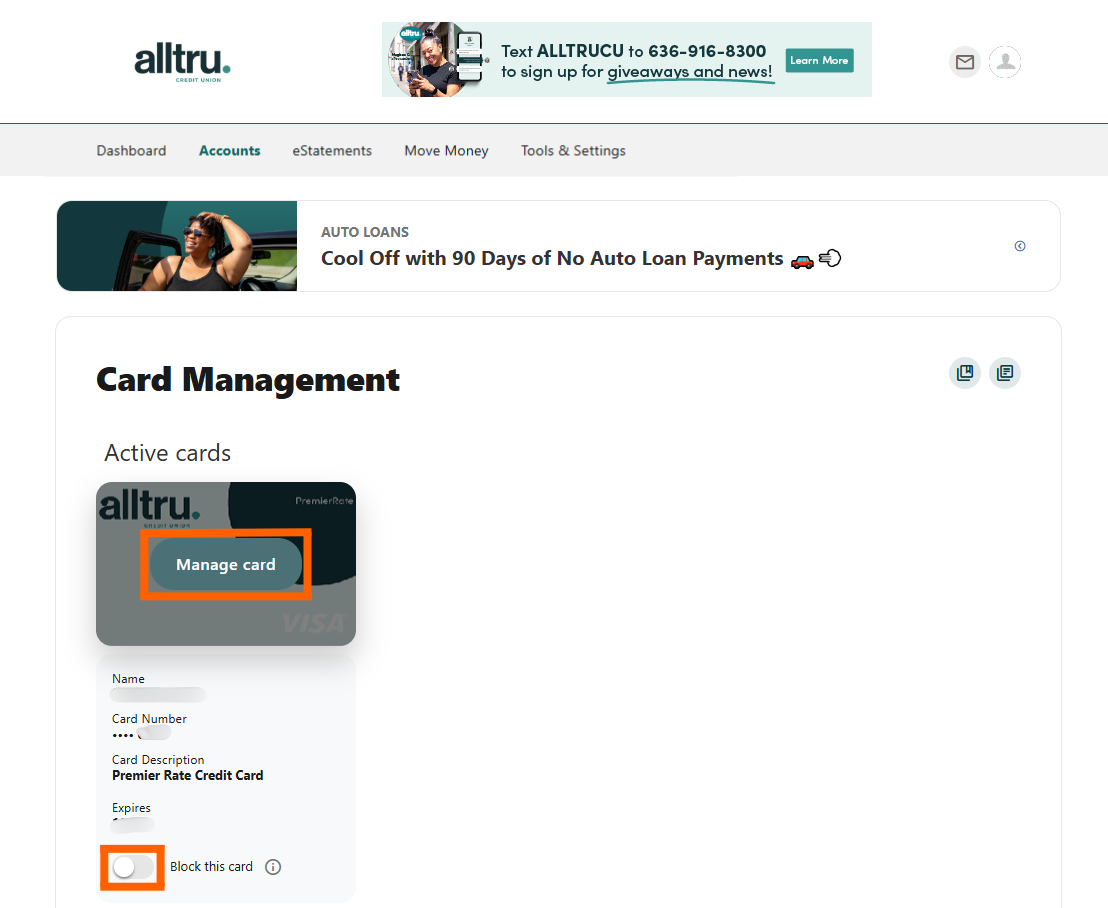
Step 4: From here, you can quickly block a card by moving the slider labeled Block this card on/off. For more options, hover over the desired card and select Manage card.
Step 5: You can now select from the options to temporarily freeze, or block and unblock your card.
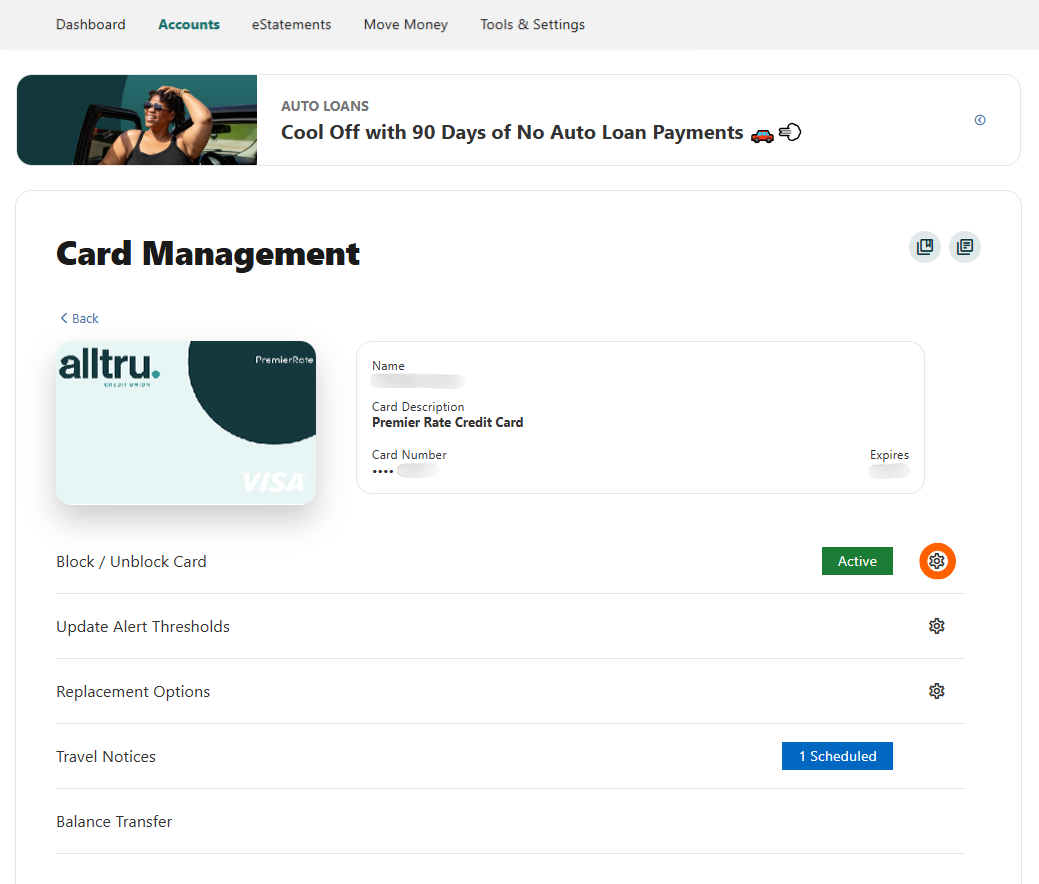
Step 6: If you did not already freeze your card on the previous screen, you can do so by toggling the Block this card button.

Mobile Banking App Instructions:
Step 1: Log into your account on the Alltru CU app.
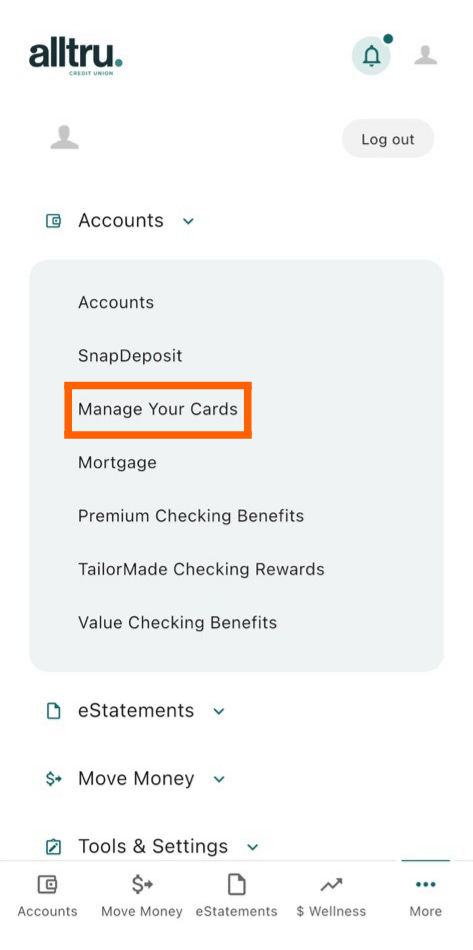
Step 2: Select More from the menu at the bottom of the screen.

Step 3: Under the Accounts drop down menu, select Manage Your Cards, the third option from the dropdown.
Step 4: Select Block/Unblock Card.
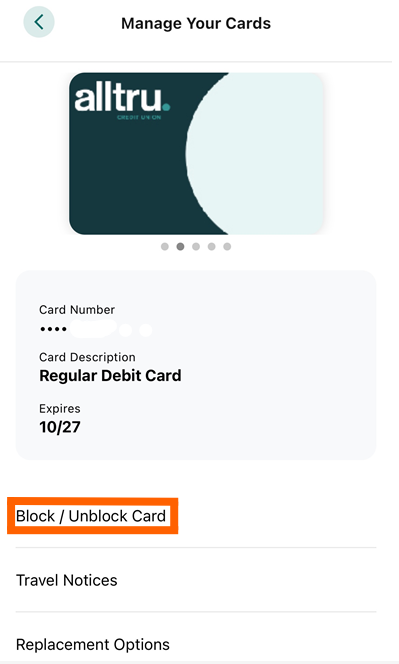
Step 5: Near the bottom of the screen, click on the toggle for Block this card.
