

Pay bills securely through Alltru Online and Mobile Banking. This guide will show you how to make a payment, schedule recurring payments, and view, edit or cancel scheduled payments.

What would you like to do?
- Make a bill payment
- Schedule recurring payments
- View or manage a scheduled payment
- Use Bill Pay in the mobile app
Make a Bill Payment
Step 1: Open Bill Pay
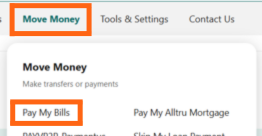
Log in to Digital Banking and select Move Money > Pay My Bills.
Step 2: Find the biller you want to pay
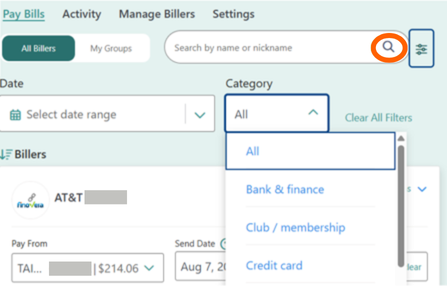
Find the biller you want to pay by using the search bar or filters.
Step 3: Choose the account you want to pay from
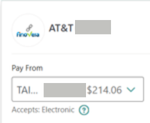
Your default account will display in the Pay From field.
To use a different account for this payment, select the Pay From drop-down and choose another account.
Step 4: Choose the date and amount
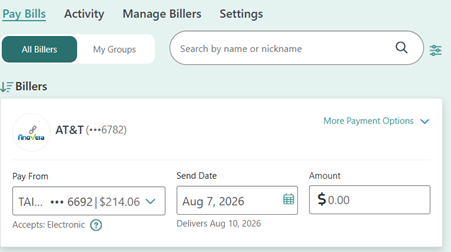
The earliest available Send Date will display automatically. To choose a different date, select the calendar and choose the date you want the payment sent.
The estimated delivery date will display below the Send Date.
Enter the amount you want to pay in the Amount field.
Step 5: Add and review your payment
For a single payment, select Pay Now.
If you want to pay additional bills, select Add This Payment to add the payment to your payment list before choosing another biller.
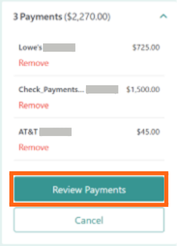
When you’re finished adding payments, select Review Payments.
Step 6: Submit your payment
Review your payment details to make sure everything is correct, then select Pay Total.
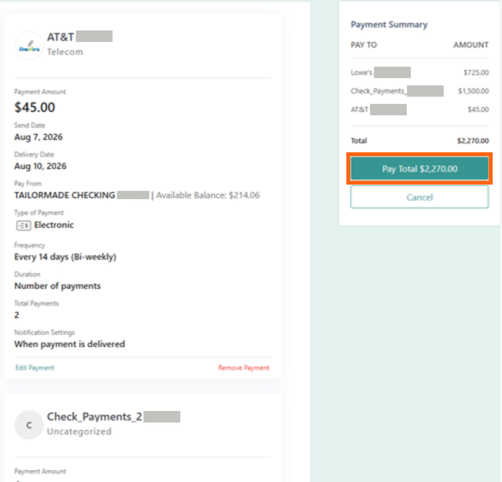
You’ll see a confirmation when your payment has been successfully scheduled.
Schedule Recurring Payments
You can schedule payments to repeat automatically instead of setting up each payment individually.
- Find the biller you want to pay.
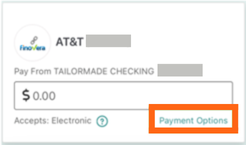
- Select More Payment Options.
- Choose the Frequency, Duration and Total Payments.
- If you’d like, you can also add a memo or choose to receive a notification when the payment is delivered.
- Select Review Payments and review the payment details.
- Select Pay Total to schedule your payments.

View or Manage a Scheduled Payment
You can view upcoming payments and make changes before they’re sent.
- Go to Move Money > Pay My Bills.
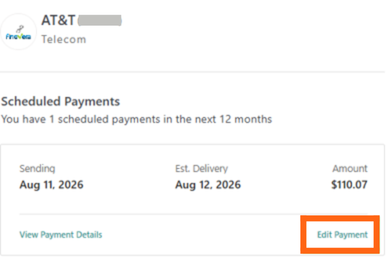
- Find the payment in the Activity Summary or select the Activity tab.
Select the scheduled payment you want to view.

Edit a scheduled payment
Select Edit Payment.
You can update the payment amount, account, send date, frequency, notification settings or memo.
When you’re finished, select Save and Continue.
Cancel a scheduled payment
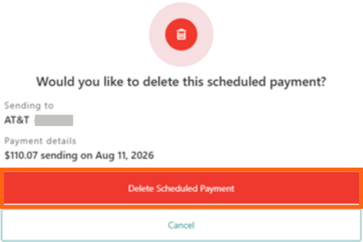
To cancel the payment, select Delete Scheduled Payment and confirm the deletion.
Use Bill Pay in the Mobile App
You can also make and manage bill payments from the Alltru mobile app.
Make a payment
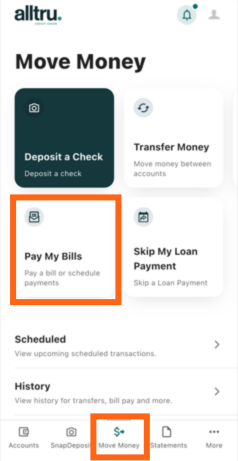
Select Move Money from the menu at the bottom of the screen, then select Pay My Bills.
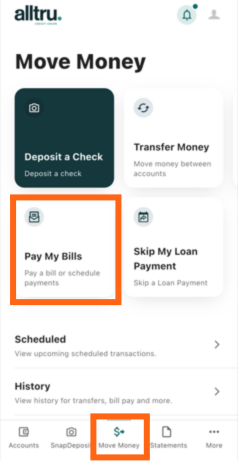
From there, find the biller you want to pay and follow the same basic steps to:
- Choose the account you want to pay from.
- Enter the payment amount.
- Choose the send date.
- Review your payment.
- Submit the payment.
For recurring payments, select Payment Options to choose the frequency, duration and total number of payments.
Manage a scheduled payment in the app
Open Pay My Bills and select View Details for the scheduled payment you want to manage.
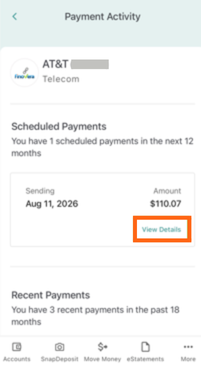
Select Edit Payment to make changes or Delete Payment to cancel the payment.
Need to add a new biller? See How to Add and Manage Billers.