


If a biller supports eBills, you can link your bill so you can see the amount due, due date and billing statements directly in Bill Pay.

What would you like to do?
Set Up an eBill After Adding a New Biller
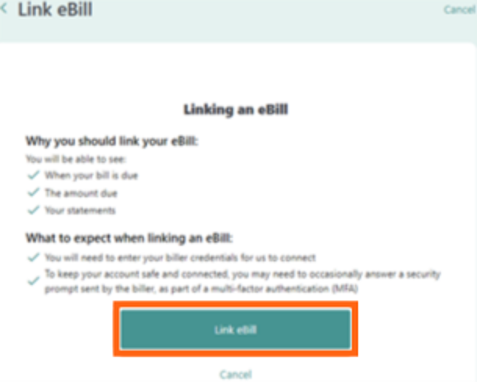
Step 1: Select Link eBill
After adding a new biller, select Link eBill.
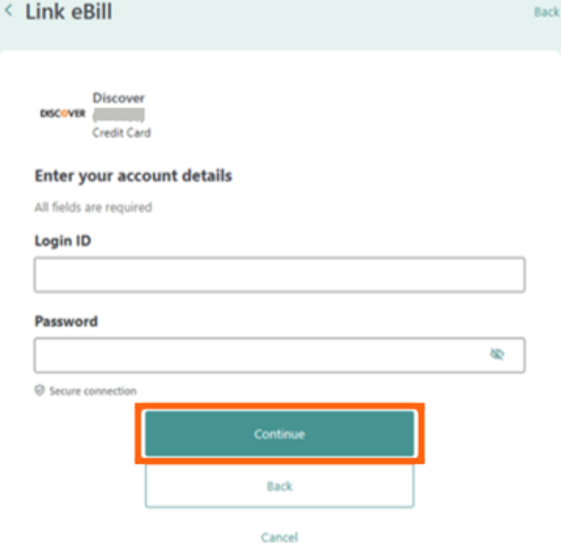
Step 2: Enter your information
Enter the requested information, then select Continue.
Step 3: Complete the setup
Follow the prompts while your information is validated.
Once your eBill has been successfully linked, you’ll see a confirmation.
Set Up an eBill for an Existing Biller
Step 1: Open Bill Pay
Log in to Online Banking and select Move Money, then Pay My Bills.
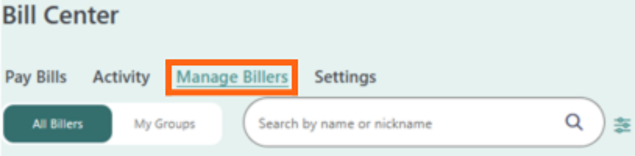
Step 2: Open Manage Billers
Select Manage Billers.
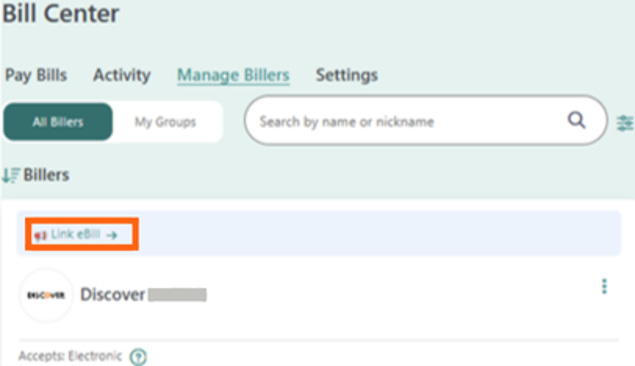
Step 3: Find your biller
Find the biller you want to link and select Link eBill.
Don’t see Link eBill? eBills are only available for participating billers. If Link eBill doesn’t appear, that biller doesn’t offer eBills.
Step 4: Enter your account information
Enter your account number, then select Continue.
Review the information and select Link eBill.

Step 5: Complete the setup
Enter the requested information and select Continue.
Follow the prompts while your information is validated.
Once the eBill has been successfully linked, you’ll see a confirmation.
Ready to Pay a Bill?
Learn how to make a payment, schedule recurring payments, and manage scheduled payments with Bill Pay.